trepil for Mac
Your download has started.From download to your first meeting.
It's on its way to your Downloads folder. Four steps from here to the notes of your next call.Four steps from the download to the notes of your next call. For Macs with Apple silicon, M1 and later.
Didn't start? Download again. Apple silicon, M1 and later.
Apple silicon, M1 and later

 1
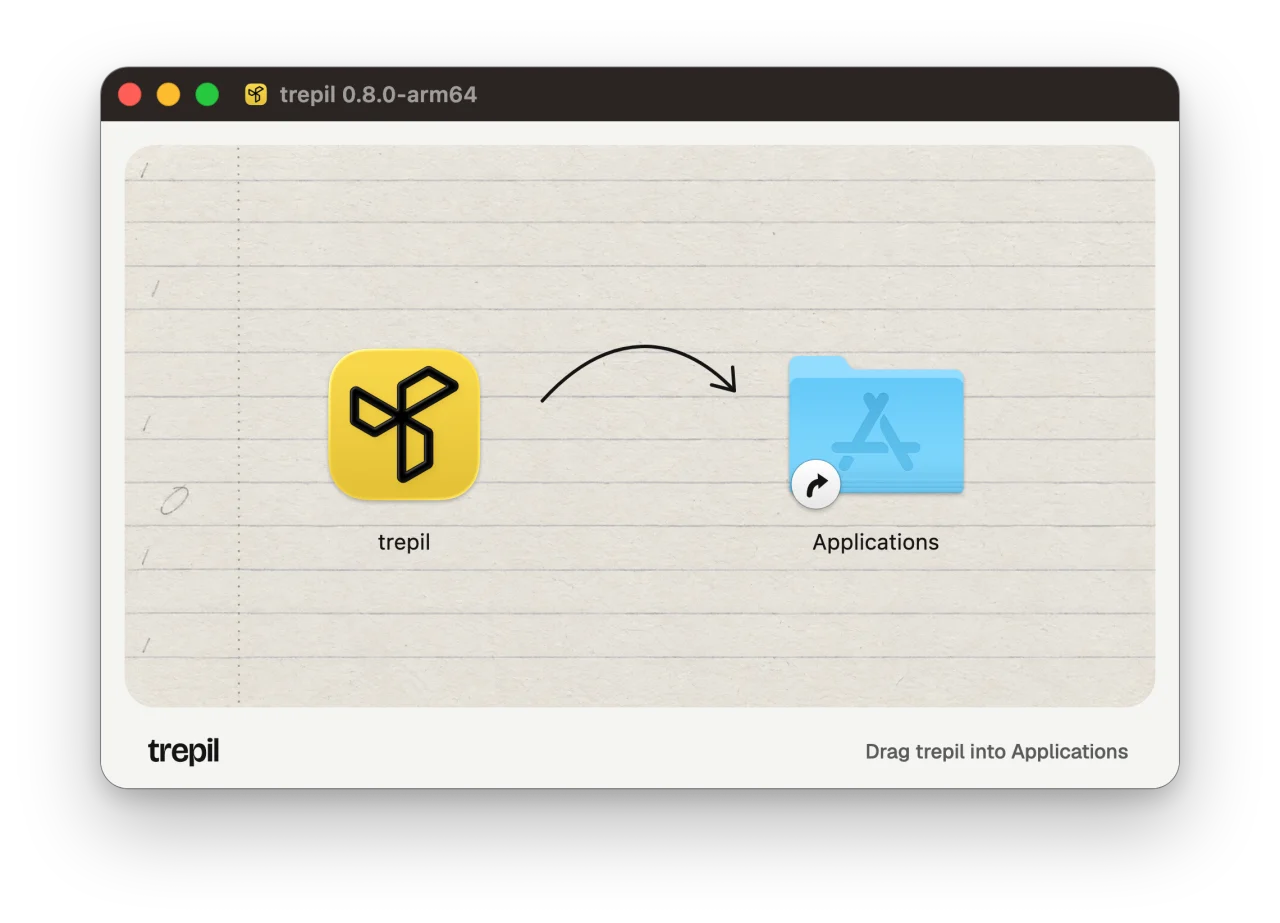
Drag trepil into Applications
Open the disk image in Downloads. In the window that opens, drag trepil onto Applications, then eject the disk.
 2
Open trepil and sign in
Open it from Applications. The first time, your Mac checks it came from the internet; choose Open. Then enter your email and the 6 digit code we send you.
 3
Let trepil hear the call
Allow the microphone, and system audio when your Mac asks, so both sides of the call make it into the notes. A two minute test checks both.
 4
Join your call
When Zoom, Meet or Teams starts, trepil notices and takes notes, with no bot in the call. Or choose Start meeting in the menu bar. When the call ends, your notes are written: a summary, decisions and action items.

On Windows or iPhone?
They're on the way. Leave your email and we'll write once, when yours is ready. Meanwhile, trepil works in your browser at app.trepil.com.